

Prerequisites
Before you get started, you must have the following:- An Omni account with permission to manage clusters.
omnictlinstalled and configured. See Install and configure omnictl.
How manifest sync works
Omni pushes manifest data to its internal state and applies it to the cluster asynchronously. Omni waits until the Kubernetes API is available and the cluster is healthy before attempting to apply manifests. If a manifest fails to apply due to a transient error, Omni retries continuously until it succeeds. If a manifest contains a configuration error (for example, an invalid field), Omni reports the error in theClusterKubernetesManifestsStatus resource and keeps retrying.
Sync modes
Manifest sync supports two operation modes:one-time: The manifest is applied once. After a successful apply, Omni does not track or re-apply changes to the manifest. Use this for tools that manage themselves after bootstrapping, like Argo CD.full: Omni continuously syncs the manifest. Any change to the manifest in the cluster template is applied to the cluster. This is similar to how a GitOps controller reconciles state.
Add manifests to a cluster template
Manifests are defined under themanifests field of the Cluster document in a cluster template.
Each manifest entry requires a name, a mode, and either an inline list of Kubernetes resources or a file path to an external YAML file.
Inline manifest
Useinline to embed Kubernetes resource definitions directly in the cluster template.
The inline field accepts a list of standard Kubernetes manifests.
All standard Kubernetes fields are supported and are forwarded to the Kubernetes client without modification.
External file manifest
Usefile to reference an external YAML file.
The file path is relative to the working directory when running omnictl.
Replace <path-to-manifest-file.yaml> with the actual path to your manifest file.
Multiple manifests
You can define multiple manifest entries under themanifests field.
Each entry is applied independently and can use a different mode.
Replace <path-to-manifest-file.yaml> with the actual path to your manifest file.
Apply the cluster template
Once the cluster template is updated with manifests, apply it usingomnictl:
Verify manifest sync status
You can inspect a cluster’s manifest sync status from either the CLI or the Omni UI.- CLI
- Omni UI
Use The output shows the state of each manifest.
omnictl to read the ClusterKubernetesManifestsStatus resource: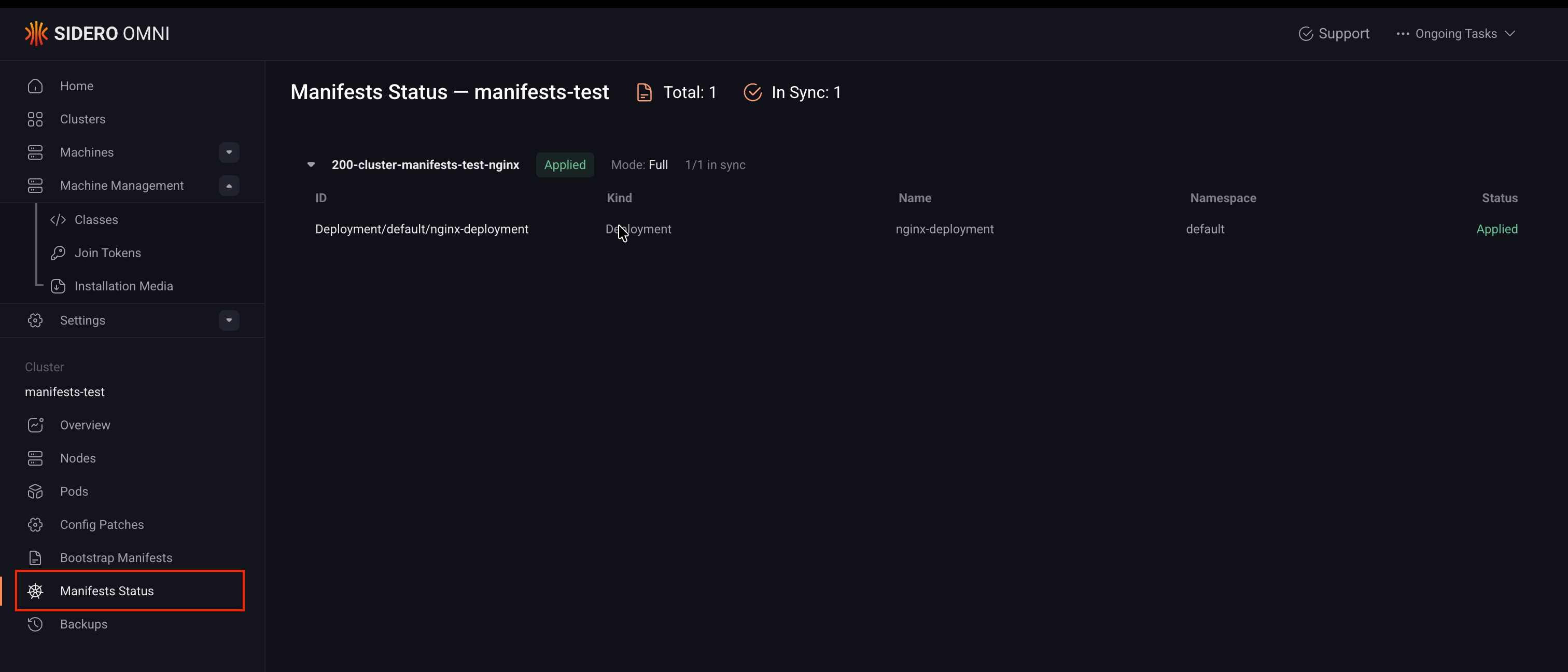
Limitations
Here are some limitations with using the Kubernetes manifest sync feature:- Helm and Kustomize are not supported at this time. Only raw Kubernetes manifests can be applied.
- Manifest sync does not support fetching manifests from remote URLs (for example,
https://). - The Omni UI displays the sync status of synced manifests, but does not allow editing or managing them from the UI.