Prerequisities
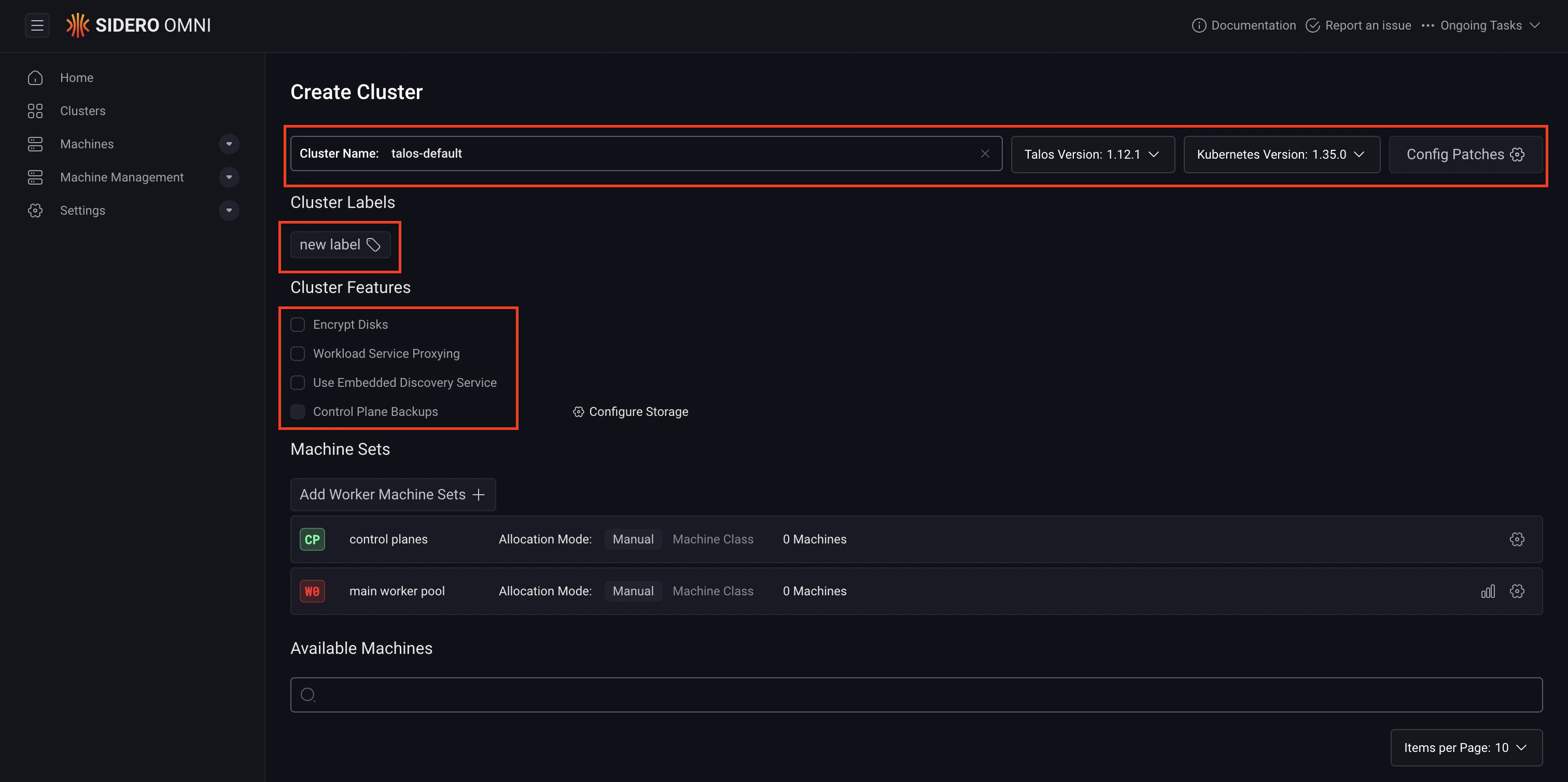
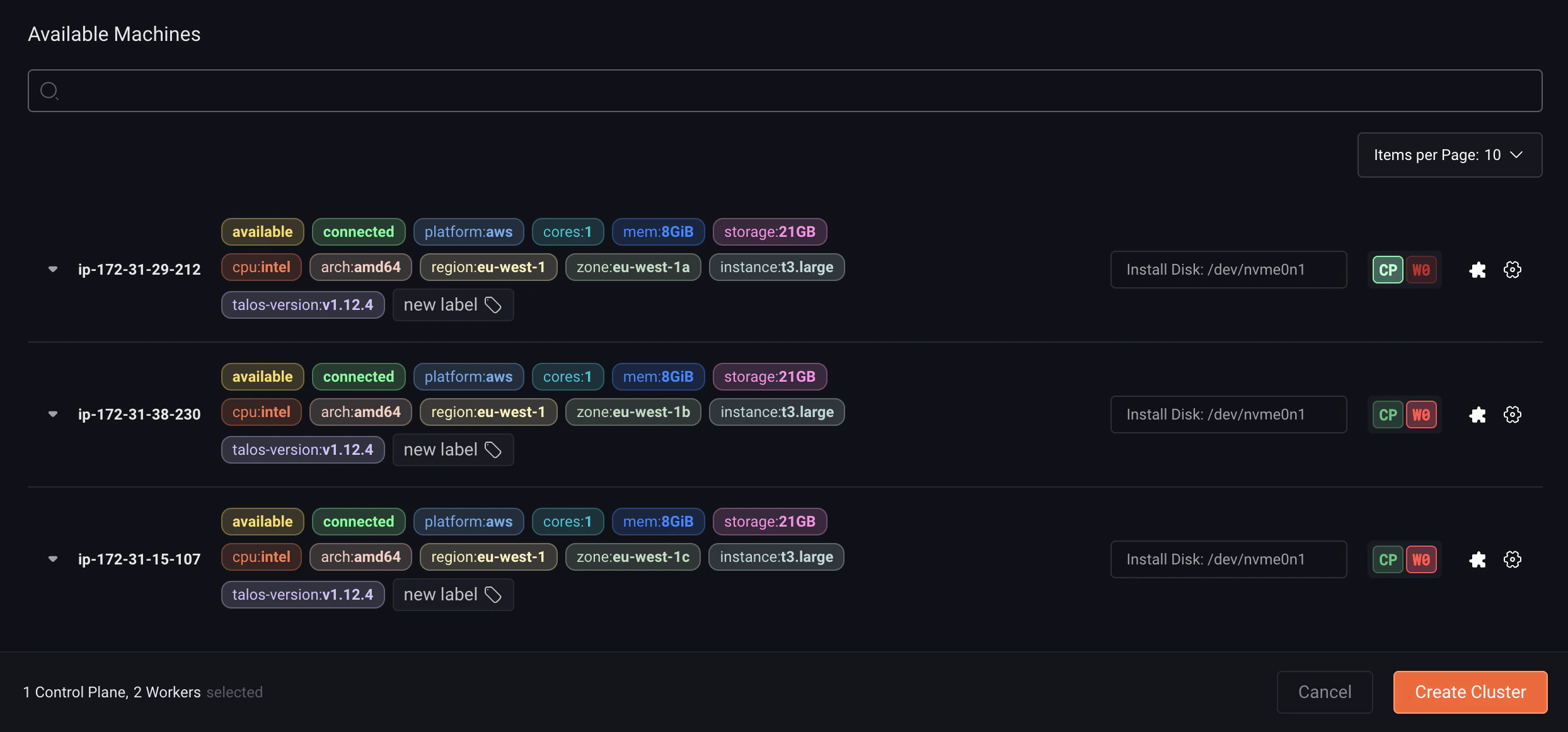
To follow this guide you must have machines registered to your Omni instance. Refer to the Register machines with Omni section to understand how to register your specific machine to Omni. You can create a cluster in Omni using this registered machines through the Omni UI, or using cluster templates through manual or dynamic machine allocation.- CLI through manual machine allocation
- CLI through dynamic machine allocation
- UI
When creating a cluster using cluster templates with manually allocated machines, first identify the unique ID of each machine so the template can reference them.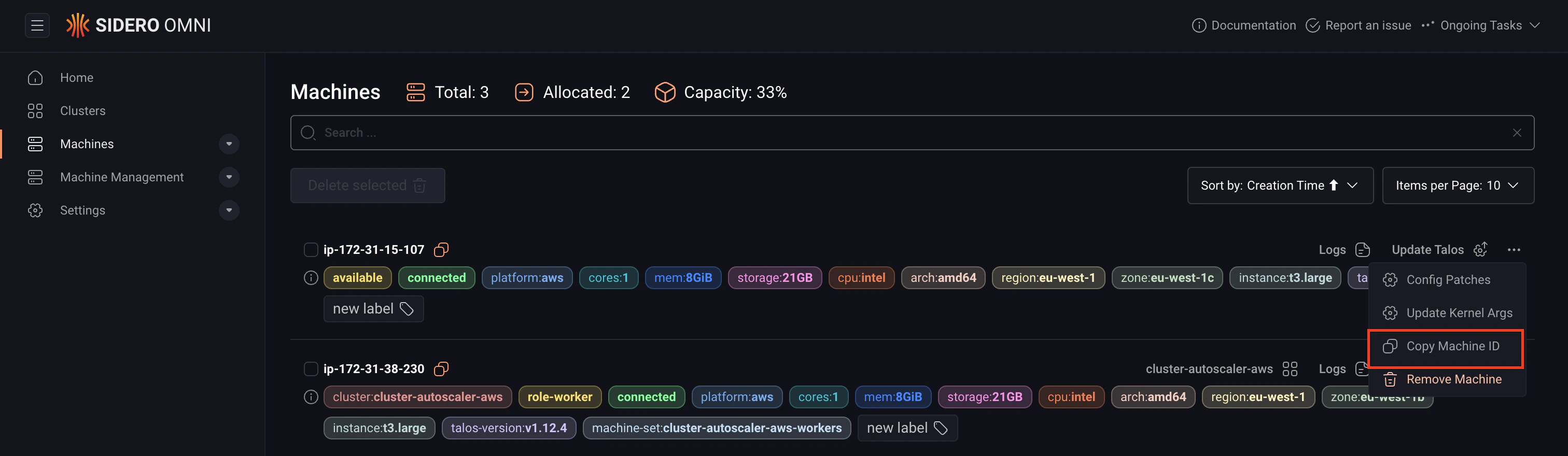
Step 1: Get the machine UUID
For each machine you want to include in the cluster:- Select the Machines tab.
- Click the … button on the machine.
- Click Copy Machine ID.
Step 2: Create a cluster template file
A cluster template is made up of multiple documents separated by---. Each document defines a different aspect of your cluster, the cluster itself, control plane nodes, worker nodes, and per-machine install settings.Create a file called cluster.yaml and populate it with the following, replacing each placeholder with your own values:<kubernetes-version>: The Kubernetes version for your cluster.<talos-version>: The Talos Linux version for your cluster.<control-plane-machine-uuid>: The UUID of the control plane machine.<worker-machine-uuid>: The UUID of the worker machine.<disk>: The name of the install disk on each machine (e.g.sda).
Step 3: (Optional) Enable additional features
To enable features such as disk encryption or workload proxying, add afeatures block to the Cluster document: