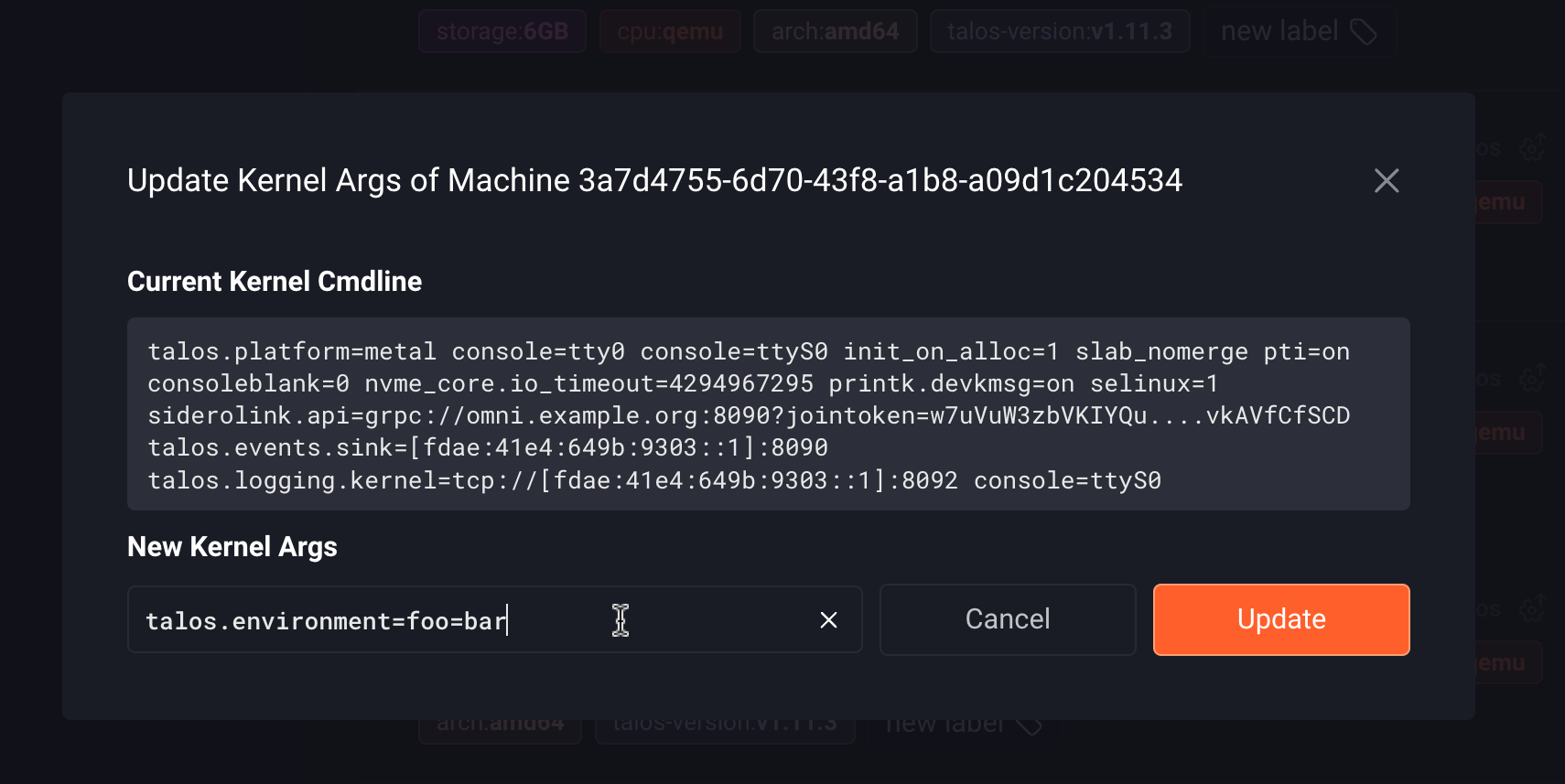
Some kernel arguments are added automatically by Omni (for example, the SideroLink arguments), while others are provided by Talos.These automatically added arguments are not user-editable and modifying them is not supported.This document describes how to modify additional kernel arguments only.
Add kernel arguments during installation media creation
You can include additional kernel arguments into your Talos Omni image using either cluster templates, the Omni CLI or the Omni UI.- Cluster templates
- CLI
- UI
You can add kernel arguments to your machines by defining them in the machine configuration within your cluster template.Use the After defining your cluster template, validate it using:If the validation succeeds, sync the template to apply the configuration to your Omni instance:After syncing, the control plane machine will boot with the
kernelArgs field in your cluster template to specify which extensions to install. For more details, see the Cluster Templates reference documentation.The code block below defines the configuration for a cluster named my-cluster, including kernel arguments for both control plane and worker machines.talos.dashboard.disabled=1 kernel argument, while the worker machine will boot with the console=ttyS0,115200n8 kernel argument.KernelArgs resource for that machine. You can view and update this resource later to modify the kernel arguments.
To retrieve the resource, run:
Update kernel arguments on existing machines
Some conditions must be met for kernel argument updates to take effect.
If these conditions are not met, they appear in the
unmetconditions field of the KernelArgsStatus resource and in the UI.- UI
- CLI
- Go to the Machines tab.
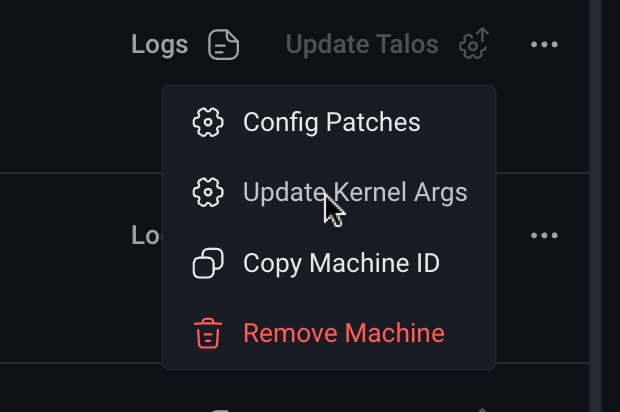
- Click the three dots next to the machine you want to modify and select Update kernel args.
- In the popup, click the pencil icon to edit the current kernel arguments.
- Click Update.