

 Talos
Talos Omni
Omni Kubernetes Guides
kubectl with an Omni-managed cluster the same way you would with any Kubernetes cluster. The main difference is that you must:
- Use the
kubeconfigfile downloaded from Omni - Install the
oidc-loginplugin forkubectl
kubectl requests are routed through the Kubernetes API endpoint created by Omni. Omni validates access using the configured OpenID Connect (OIDC) provider or other authorization mechanism.
This means that possessing a kubeconfig file alone does not grant access. The user must also authenticate through Omni’s configured identity provider.
Prerequisites
Before you begin, you needomnictl, omniconfig, and the oidc-login plugin installed and configured.
On macOS and Linux: Install omnictl and oidc-login with a single command:
oidc-login plugin separately using the kubelogin getting started guide.
Once installed, follow the Configure omnictl guide to set up your omniconfig.
Step 1: Download the kubeconfig file
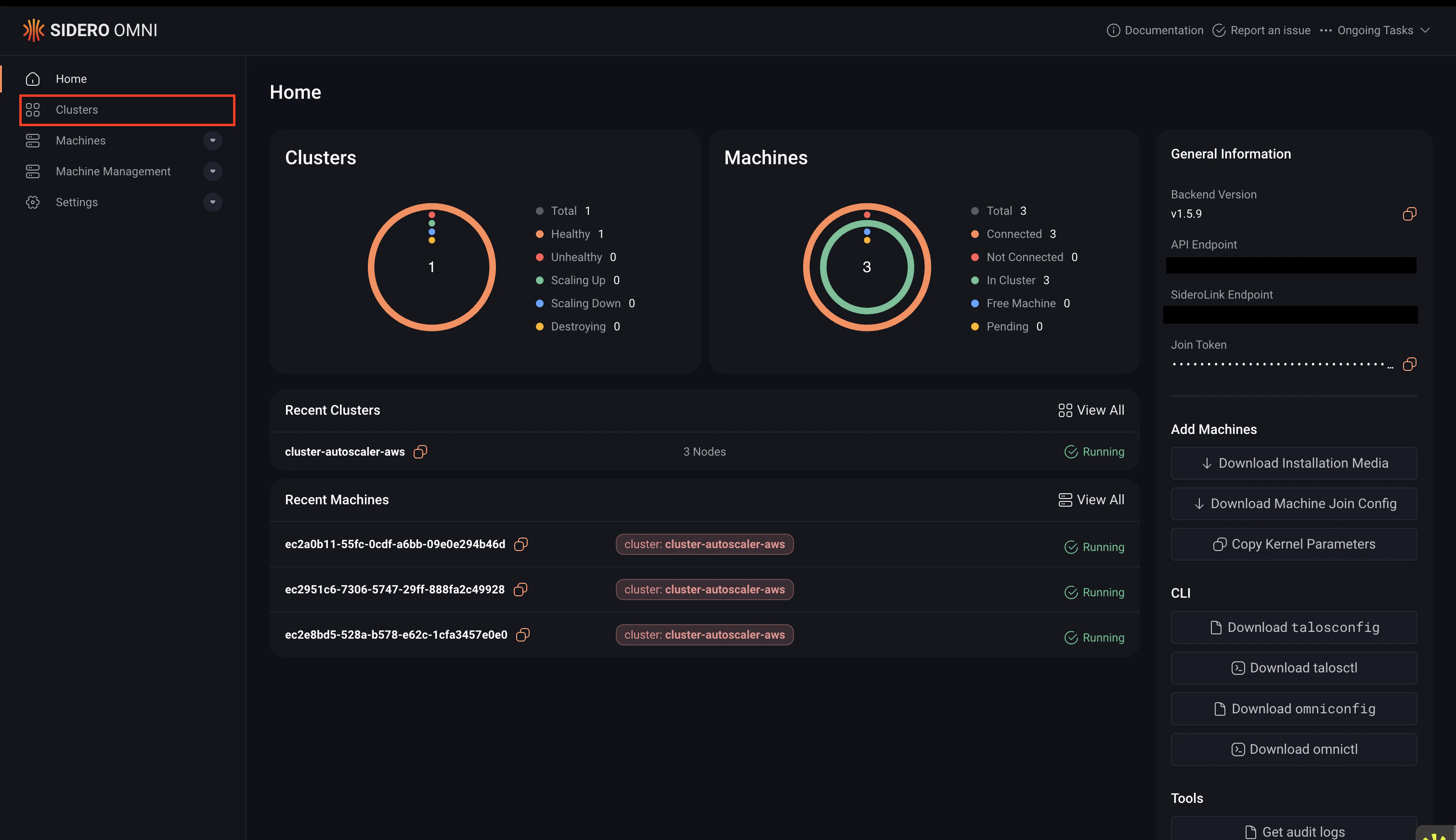
You can download thekubeconfig file for your cluster using either the Omni UI or the CLI:
- CLI
- UI
To download the
kubeconfig file using the CLI, run the following command. Replace <cluster-name> with the name of your cluster:
Step 2: Merge your configuration
Merge the downloadedkubeconfig with your existing Kubernetes configuration so kubectl can detect the cluster automatically:
- Define the path to the downloaded kubeconfig file:
- Merge the configuration:
Step 3: Access the cluster with kubectl
Verify that you have configuredkubectl correctly by running:
omnictl, talosctl, and kubectl lasts for 8 hours. After that period, you must authenticate again.
If you see the error below, the OIDC plugin is not installed or not available in your PATH:Install the
oidc-login plugin and ensure it is available in your shell environment.Switch between authenticated users
If you have multiple contexts in your kubeconfig that authenticate to the same cluster within the same Omni instance, switching between those contexts does not change the authenticated user. This is a known limitation of the OIDC-based login used bykubelogin.
The plugin reuses the existing authentication token that is cached for the cluster, so the previously authenticated user remains active.
To authenticate as a different user, you must first clear the authentication cache.
Run one of the following commands:
kubectl command again. This will trigger the OIDC login flow, where you can authenticate as a different user using the Switch User option.
Using OIDC authentication over SSH
If you need to run kubectl on a remote host over SSH, you can authenticate using one of the following methods:- Download a kubeconfig that uses keyboard authentication
- Tunnel the local authentication ports over SSH
Option 1: Download kubeconfig using keyboard authentication
This method avoids opening a browser automatically. First ensure thatomnictl and your Omni configuration are installed.
Then run:
Option 2: Use SSH port forwarding
You can also forward the authentication ports used byoidc-login over SSH.
Run the following command when connecting to the host:
Automatically enable SSH port forwarding
To automatically forward these ports when connecting to a host, add the following configuration to your~/.ssh/config file:
Disable automatic browser opening
You also need to disable automatic browser opening. Otherwise,oidc-login may attempt to open a browser on the SSH host, or fail if a browser is not installed.
To disable this behavior, add --skip-open-browser to the oidc-login arguments in your $KUBECONFIG file: